QR & Barcode Scanner
- 4.6
- Rating
- 100.00M
- Installs
- Free
- Price

 Analysis by App-foxy
I tend to judge a utility app by what happens after the first successful use. A scanner can read a code quickly, but the more important question is whether it helps me finish the task without creating another small problem to remember later. QR & Barcode Scanner, developed by TeaCapps, fits best into that practical space: it is a free productivity app for reading QR codes and barcodes, with a compact footprint and a straightforward purpose.
That simplicity is its main appeal. I do not open it expecting a full shopping database, a document-management system, or a place to build a permanent archive of everything I scan. I open it when a code is blocking the next step. In my experience, that focused approach makes it useful for everyday moments such as checking a product, opening information from printed material, or reading a code when the camera app on a phone is not doing the job reliably.
The app has reached more than one hundred million installs and holds a 4.6 average from roughly three and a half million ratings. Those figures do not make every scan perfect, but they do show that this is a familiar tool rather than an obscure experiment. It is rated for Everyone, runs on Android six and later, and the current version is 3.3.6-L. I also like that the basic app is free, although optional in-app purchases are listed at $6.99 per item.
You May Also Like

 Blood Strike: 2.5 Anniversary
Blood Strike’s Loadouts Turn Every Drop Into a Tactical Gamble
A close look at Blood Strike’s custom loadouts: how fast access to signature weapons reshapes its battle royale rhythm, rewards preparation, and narrows the gap between fights.

 Pandora - Music & Podcasts
Pandora’s Music Is Easy to Start, but Harder to Recover
Pandora’s strength is its low-effort path from a seed to a station. Its weak spot is how much confidence it asks you to place in connection, setup, and quiet recovery.

 8 Ball Pool
8 Ball Pool Is Built on Rivalries, Rematches, and Routine
A close look at the rivalries, rematches, shared routines, and unanswered safety questions that turn a quick pool match into a persistent mobile community.

 Samsung Music
Samsung Music’s Quiet Strength Is Playing What You Already Own
Its reach comes less from spectacle than from dependable access to a personal library. That simplicity is both the app’s strongest retention engine and its ceiling.

 AccuWeather: Weather Radar
AccuWeather Review: A Quick, Clear Forecast for Everyday Decisions
For everyday plans, the best forecast is the one you can understand quickly. AccuWeather makes rain timing, radar, and local conditions easy to act on, with a few trade-offs.

 Hill Climb Racing
Why Hill Climb Racing Still Turns Crashes Into One More Run
A tiny car, a bumpy hill and one more upgrade: Hill Climb Racing keeps resurfacing because its simple chaos makes every near-miss feel personal.
More From Our News Desk
View All News


Building a workflow around a quick scan
I find a quick scan works best when it is the start of a deliberate next step, not a reason to collect more digital loose ends. In this section, I’ll look at how a simple routine can make QR & Barcode Scanner useful for recurring tasks, especially when the same kinds of codes appear in work, shopping, or household errands.
Before opening the scanner
The most useful change is not a hidden button; it is deciding what I want to do with the result before I point the camera at the code. If I need to visit a page, I can scan and continue immediately. If I am checking a barcode while shopping, I first decide whether I am comparing an item, confirming its identity, or simply reading information printed too small for me to make out. That small pause prevents scanning from becoming a collection of meaningless results.
Without a dedicated scanner, I usually move through an awkward chain: unlock the phone, try the regular camera, wait for recognition, tap a notification, and then work out whether the result is useful. Sometimes the camera recognizes a QR code instantly; sometimes the angle, lighting, or printed surface gets in the way. A separate tool gives me a predictable place to start, which matters when I am standing in a shop, at a desk, or in front of a poster.
I would not describe this app as a complete productivity system on its own. Its value comes from the handoff after scanning. For example, if a code takes me to a page I need for work, I save or act on that information right away rather than assuming I will find it again. If I scan a product while shopping, I make the decision in the same session. The app is strongest when it removes a small obstacle and I already know what the next action should be.
Capturing information without adding clutter
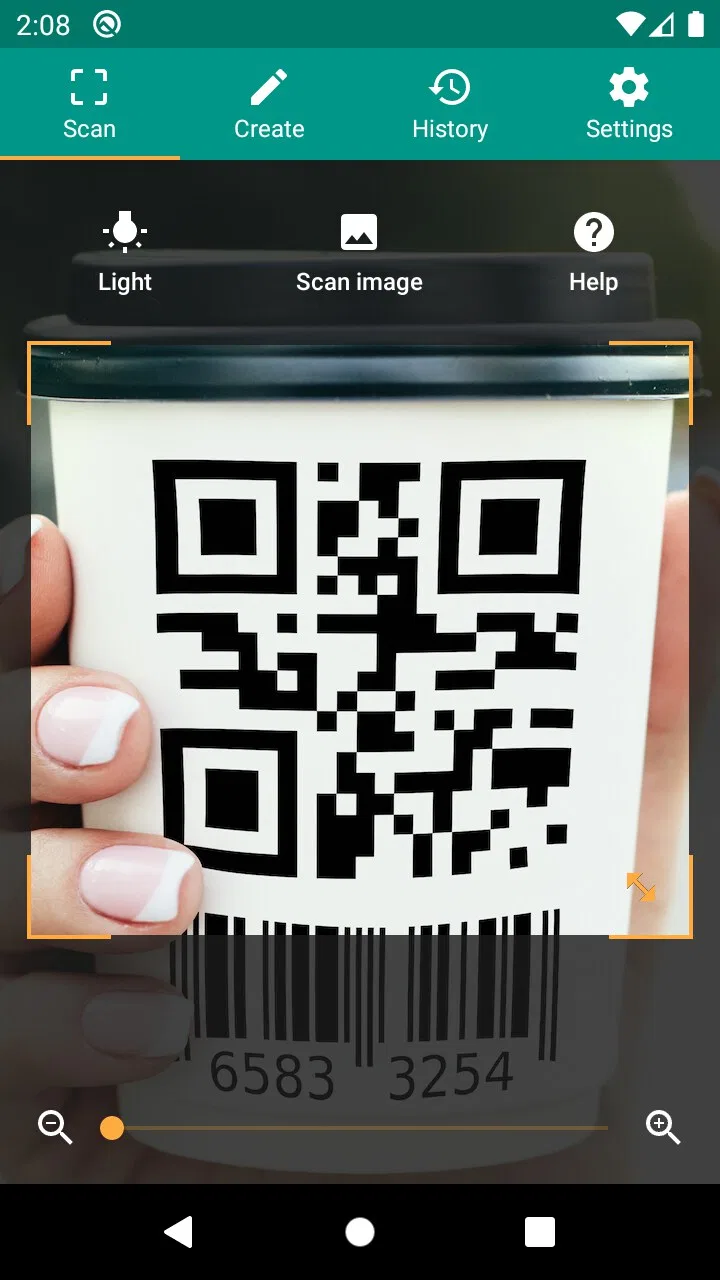
The central experience is deliberately uncomplicated: aim the phone at a QR code or barcode and let the app interpret it. That makes it approachable for someone who does not want to learn a complicated interface. I found the compact design especially fitting for an app that may be installed only for occasional use. It does not need to become the center of my phone; it just needs to be available when a code appears.
A useful habit is to treat every scan as one of three things: an action, a reference, or a dead end. An action is something I can use immediately, such as opening information. A reference is something worth noting elsewhere, perhaps in a shopping list or work note. A dead end is a code that leads nowhere helpful or does not match what I expected. Classifying the result while it is still fresh keeps the scanner from creating a vague pile of “things to check later.”
Barcode scanning is also more practical when I use it for identification rather than assuming it will automatically answer every shopping question. A barcode can tell me what an item is within the information available to the app or the surrounding service, but it is not a guarantee of current pricing, stock, quality, or suitability. I would still compare the actual product details and make the final decision myself. That distinction is easy to overlook when a scan feels authoritative.
For QR codes, I pay attention to the destination before treating it as trustworthy. A code printed on a menu, ticket, package, or notice can be convenient, but scanning does not make the destination safe or relevant by itself. I check the result and avoid entering sensitive information unless I recognize the context. This is not a criticism unique to TeaCapps; it is a sensible boundary for any QR reader.
Turning occasional scans into a repeatable routine
The app becomes more useful when I give it a repeatable place in my day. My preferred routine is simple: scan, inspect the result, complete the next action, and close the loop. If the scan opens a page that contains something I need, I handle it immediately. If it produces information for later, I move that information to the tool where I actually manage tasks. The scanner remains the capture point, not an accidental storage room.
A realistic example is receiving a printed notice with a QR code for an online form. Before using a scanner, I might photograph the paper, forget about it, and later search through images. With this app, I can read the code at the moment I notice it, determine where it leads, and complete the form while the paper is in front of me. If I cannot finish, I record the specific next step in my normal notes or task list. The improvement comes from the routine around the scan, not from scanning more often.
Another example is a small business owner checking stock. I would scan one item at a time, use the result to confirm the product, and update the inventory system separately. I would not expect this app to replace inventory software. Its role is to reduce manual entry or help identify an item before I make the real update. That narrow role can still save attention, especially when labels are crowded or several similar packages are nearby.
For personal organization, I find it helpful to keep a short rule: do not scan something twice unless the first result was unclear or the context changed. Repeatedly scanning the same code rarely creates better information. If a code is part of a recurring process, I focus on what changes around it, such as the date, the item, or the action required. This prevents the app from becoming a source of repetitive taps instead of a shortcut.
Because the application is free, it is easy to keep installed as a fallback even if I normally use the phone’s built-in camera. That is a sensible arrangement. I do not need to force it into every situation; I can use the native camera when it is faster and open this dedicated reader when I want a more direct scanning workflow. The best productivity setup is often the one that gives each tool a clear job.
Where the smooth experience can break down
Scanning is still dependent on the physical code. Glare, curved packaging, low contrast, damaged printing, and awkward angles can make recognition slower or unsuccessful. I usually improve the odds by holding the phone steady, filling enough of the view with the code, and changing the angle rather than moving rapidly from side to side. A dedicated reader cannot repair a badly printed symbol, so patience with the surface matters as much as the app.
Lighting creates another practical limitation. A dark room or a shiny package can make the camera work harder, while harsh reflections can obscure parts of the pattern. If a scan fails, I try moving near a window or turning the item slightly before assuming the application is at fault. This is especially relevant with glossy labels, where the best position may be a little off-center rather than directly above the code.
There is also a difference between recognizing a code and making its result useful. A successful read may still lead to information I do not need, a page that requires extra steps, or a product identity that needs checking. I prefer this app when I want the first part of that process handled quickly. I would choose a more specialized alternative when I need price history, extensive product research, inventory controls, or a long-term record of scans.
The free model is attractive for occasional use, but anyone considering an optional purchase should first decide whether the extra value fits their routine. I would not pay simply because scanning is something I do once every few weeks. On the other hand, someone who uses a scanner frequently may find a paid option worthwhile if it removes a specific irritation in their own workflow. The sensible test is to use the free experience long enough to identify the actual friction instead of paying in advance for an imagined one.
Compatibility is another reason to check the phone before installing. The app supports Android six and later, which covers many devices, but an older phone may still have a camera that struggles with difficult codes. In that situation, changing the lighting and distance may help more than switching applications. On a newer phone, the built-in camera may already be sufficient, so the dedicated app earns its place through convenience and consistency rather than raw necessity.
How it compares with the usual alternatives
The obvious alternative is the camera app that comes with the phone. That option wins when I want to avoid another installation and the camera recognizes QR codes reliably. It can be perfectly adequate for a quick scan from a poster or screen. QR & Barcode Scanner is more appealing when I want a dedicated place for both QR and traditional barcode reading, or when I prefer opening a tool whose purpose is immediately clear.
Browser-based scanners are another possibility, but I find them less comfortable for repeated use. They add a browser step and can make the process feel temporary or improvised. A dedicated application is easier to reach when I am already holding a product or standing in front of printed material. The trade-off is that I am giving a separate app space on my phone for a task that some devices already handle.
Shopping and inventory applications can go much further with product information, lists, stock levels, and purchasing decisions. They are better choices when the scan is only one part of a larger cataloging workflow. I would not replace those tools with this app if I needed shared inventory or detailed records. I would use this reader as the quick capture layer, then pass the useful result into the specialized system.
That separation is important. Many scanner apps try to feel like complete platforms, while this one makes more sense to me as a lightweight utility. Its strength is the short path from code to result. Its weakness is that the reader still has to provide the judgment, organization, and follow-up. For people who want a scanner and nothing more, that can feel refreshingly uncluttered. For people expecting a research assistant, it will feel limited.
Who should adopt it
I would recommend it to students who frequently encounter QR codes in printed course material, shoppers who want a direct way to read product barcodes, and anyone who occasionally needs a dedicated reader instead of relying on camera recognition. It also suits people who prefer small, focused utilities and do not want to install a large shopping or inventory platform for a simple scanning task.
It can be useful in a home organization routine as well. I might scan a code from a manual, a package, or a notice, then immediately save the relevant destination in the place where I keep household information. The key is not to confuse capture with organization. If I leave every result inside whatever screen appears after scanning, I have only moved the clutter from paper to phone.
I would suggest skipping it if the phone’s built-in camera already handles every QR and barcode I encounter and I have no need for a separate reader. I would also choose a specialized product database, stock manager, or document tool if my main objective is detailed tracking rather than recognition. Installing this app will not by itself create an organized archive, compare every purchase, or manage a business workflow.
Privacy-conscious users should apply the same care they would use with any scanner: inspect unexpected destinations and do not assume that a familiar-looking code is automatically safe. People scanning codes from unknown sources should be especially cautious before signing in or sharing personal details. The app can read the symbol, but I remain responsible for deciding what to open and what information to provide.
My recommendation after using it as a utility
My overall view is that QR & Barcode Scanner succeeds because it does not need to be more complicated than the task. TeaCapps has made a free productivity app that is easy to understand, light enough to keep available, and useful when a code is the obstacle between me and the next action. The 4.6 average and broad adoption reflect that practical appeal, although popularity should not be mistaken for a promise that every difficult label will scan instantly.
I would install it as a dependable fallback, then give it a clear role in my routine: capture the code, verify the result, and finish or record the next step immediately. That approach exposes its real strengths while avoiding unrealistic expectations. It is not the right replacement for a camera app that already works, nor for a full inventory or shopping platform. But when I want a focused reader for QR codes and barcodes without paying upfront, it is an easy recommendation.
The best reason to keep this app is not that it scans everything; it is that it makes one small, recurring task predictable. Used that way, it earns its place as a practical part of a sustainable productivity system rather than becoming another app I open without knowing what to do next.
FAQs for QR & Barcode Scanner
01How does the QR & Barcode Scanner app work?
The QR & Barcode Scanner app works by using your device's camera to scan QR codes and barcodes. Once a code is scanned, the app automatically reads the encoded data and displays the information or redirects you to a website, product details, or other content linked to the code.
02Is the QR & Barcode Scanner app safe to use?
Yes, the QR & Barcode Scanner app is generally safe to use. However, users should be cautious and ensure that they are scanning codes from trustworthy sources to avoid phishing scams or malicious websites. Always make sure your device's security settings are up-to-date before using scanning apps.
03What types of codes can the app scan?
The QR & Barcode Scanner app can scan a variety of codes, including QR codes, UPC, EAN, ISBN, and other barcode formats. This makes it versatile for various uses, such as scanning product details, accessing websites, or saving contact information quickly and easily.
04Do I need an internet connection to use the app?
While the QR & Barcode Scanner app itself does not require an internet connection to scan codes, accessing content linked to a code may need internet connectivity. For example, if a QR code redirects to a web page, you will need an active internet connection to view it.
05Are there any costs associated with using the app?
The QR & Barcode Scanner app is typically free to download and use. However, some versions might offer in-app purchases or premium features, such as ad-free experiences or advanced scanning capabilities. It's important to check the app description for any potential costs before downloading.
Pros
- Fast scanning with instant results.
- Supports multiple barcode formats.
- User-friendly and intuitive interface.
- Requires minimal storage space.
- No internet needed for scanning.
Cons
- Contains ads that may interrupt use.
- Lacks advanced editing features.
- Limited customization options.
- No direct export to cloud services.
- May struggle with low-light scanning.

QR & Barcode Scanner
Gallery